
Account migration guide
Bring website sessions and local data from Chrome on the same computer into Manta, or copy site data between Manta workspaces.
Video tutorial (Chinese)


This guide uses Manta Browser 0.5.0.0 beta. The illustrations show the Chinese interface with example workspaces and accounts.
Import a Chrome profile when creating a workspace
Available on macOS. When creating a workspace such as Store Operations, you can bring over website sessions, bookmarks, and tabs from a Chrome profile.
-
Click Workspaces on the left in Manta, then click New workspace in the upper-right corner of the workspace manager.

-
Enter a workspace name and select Import from Google Chrome.
-
Under Chrome profile, select the profile to import, such as Work.
-
Press ⌘Q to quit Chrome, then return to Manta and click Create.
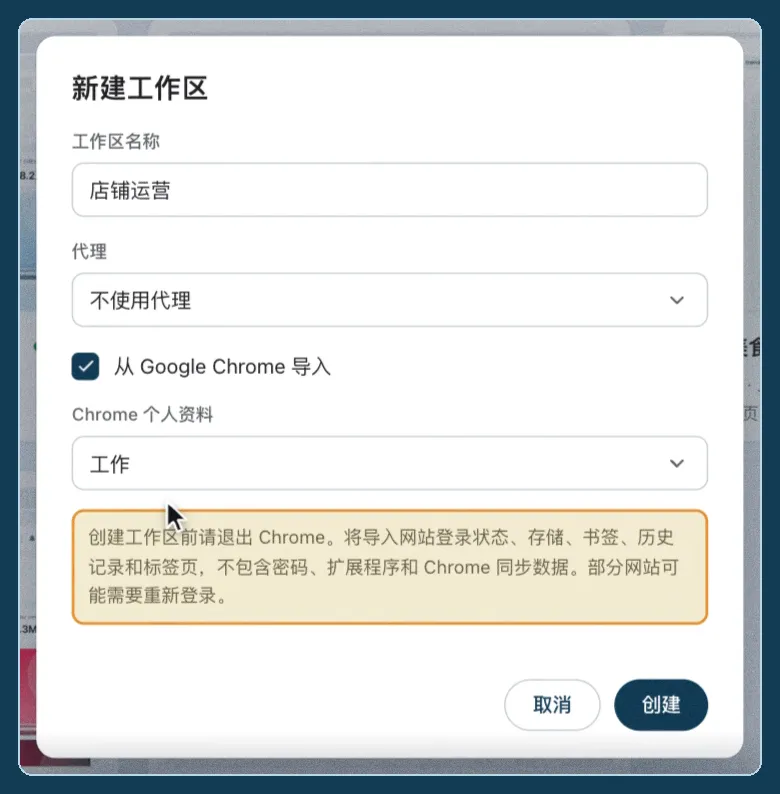
If macOS prompts you to let Manta access Chrome Safe Storage in Keychain, allow access to continue.
Open the new workspace to see the imported bookmarks and tabs. The import also brings over browsing history and site storage. Migrate or configure saved passwords, extensions, and Chrome sync data separately.
Import one site from Chrome into an existing workspace
To bring the Xiaohongshu Creator Center into an existing workspace, such as Food Creator, right-click the destination workspace on the left in Manta and choose Import site from Chrome.
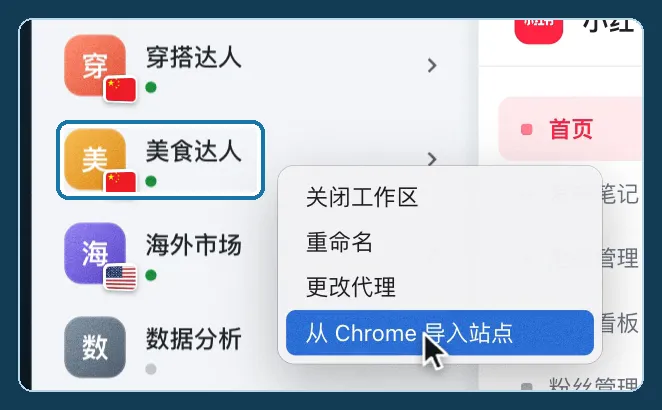
macOS
- Copy the website address in Chrome, then press ⌘Q to quit Chrome.
- In the import dialog, select the Chrome profile where you are signed in to the site and paste the full URL starting with
http://orhttps://. - Check the destination workspace shown in the dialog and confirm you want to replace its data for the site. Click Import and open. Manta opens the URL in that workspace after the import succeeds.
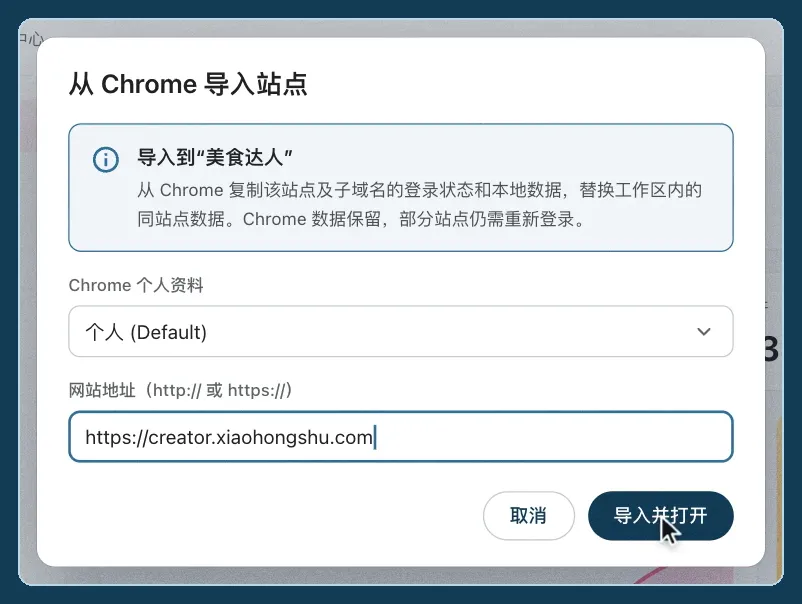
This copies cookies, LocalStorage, and IndexedDB for the site and related subdomains. If Manta asks you to quit Chrome, quit it fully and click Retry import.
Windows
Use Google Chrome 144 or later from the stable channel. Open the site you are signed in to and keep Chrome running throughout the import.
- In Chrome, open
chrome://inspect/#remote-debuggingand select Allow remote debugging for this browser instance. - In Manta, right-click the destination workspace and choose Import site from Chrome. Manta tries to connect automatically. If it asks you to check your settings, make sure remote debugging is enabled, then click Reconnect to Chrome.
- Click Allow in Chrome’s authorization dialog, then return to Manta. If the dialog opens in the background, bring Chrome to the front from the taskbar.
- Under Source Chrome tab, find the page by its title and URL, then click Import and open.
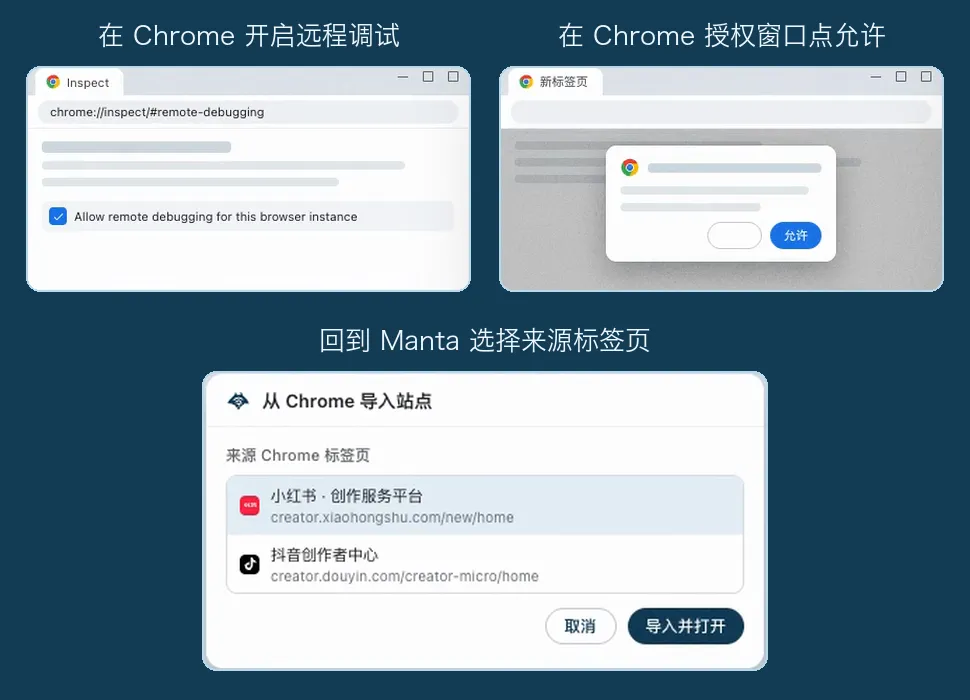
Windows imports cookies for the site and related subdomains, plus LocalStorage for the selected page. The import replaces the corresponding data in the destination workspace. For the setup and authorization screens, see the official Chrome instructions.
Drag a tab to copy a site between Manta workspaces
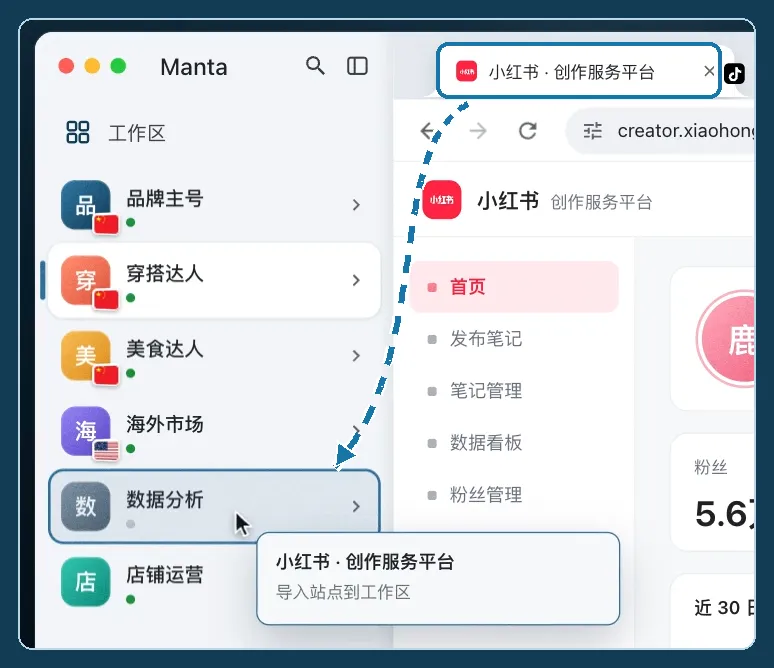
Available on macOS and Windows. For example, if you are signed in to the Xiaohongshu Creator Center in Fashion Creator, you can copy that site’s data to the Analytics workspace.
-
In the source workspace, drag the tab out of the tab bar.
-
Drag it over the destination workspace on the left. Release the mouse when the workspace highlights.
-
If the destination already has data for the site, Manta asks you to confirm the replacement. Check the workspace and site, then click Import and open to proceed.

Manta switches to the destination workspace and opens the same page. Dragging the tab copies cookies, LocalStorage, and IndexedDB. The source workspace keeps its tab and data.
Check your sign-in after importing
Check the nickname or avatar on the site in the destination workspace to confirm you are signed in to the intended account. Your original data remains in Chrome. If the website reports an expired session or asks you to verify the device, follow the prompts to verify it or sign in again.